Auto Reply Apps Troubleshooting
Having trouble with one of the LeMi Apps Android applications? This Auto Reply App Troubleshooting guide covers the most common installation, permission, scheduling, notification, and background-operation issues.
Some troubleshooting steps apply only to apps installed directly from the LeMi Apps website, while others apply to versions distributed through Google Play. Each issue below indicates which app version the solution applies to.
Choose the issue relevant to your device and app version. Exact menu names may vary depending on your Android version and device manufacturer.
If you need help understanding or configuring a feature rather than resolving a technical problem, visit the FAQ page for your specific app.
LeMi Apps Website Versions
Google Play Versions
Permissions
SMS Permission Is Greyed Out
Applies to: Apps installed from the LeMi Apps website
Why This Happens
If the SMS permission is greyed out, Android has usually placed a security block on Restricted Settings. This protection is intended to prevent unauthorized apps from receiving access to sensitive permissions.
Apps installed outside Google Play may require additional approval before Android allows SMS permissions to be enabled.
Step-by-Step Fix
- Open App Info: Long-press the app icon and tap App info.
- Allow Restricted Settings: Tap the three-dot menu in the upper-right corner and select Allow restricted settings. Confirm your password, PIN, pattern, or biometric authentication if requested.
- Grant SMS Permission: Go to App info → Permissions → SMS and set the permission to Allow.
Alternative Methods
Check Premium SMS Access: Go to Settings → Apps → Special app access → Premium SMS access. Select the Auto Reply App and choose Always allow, where available.
Reset App Preferences: Go to Settings → System → Reset options → Reset app preferences. This does not normally delete app data, but it may reset disabled apps, permissions, notification restrictions, and default app settings.
Check for Android Updates: Go to Settings → System → System update, install any available updates, and restart the device.
Related Resources
Notification Access Cannot Be Enabled
Applies to: LeMi Apps website and Google Play versions
Why This Happens
On Android 13 and newer, Notification Access may be blocked by Restricted Settings. This commonly occurs when an app was installed from outside Google Play, restored from a backup, or transferred from another device.
Auto Reply App may require Notification Access to detect and respond to messages received through supported messaging applications.
How to Fix It
- Long-press the Auto Reply App icon.
- Tap App info.
- Tap the three-dot menu in the upper-right corner.
- Select Allow restricted settings.
- Confirm your password, PIN, pattern, or biometric authentication if requested.
- Return to Notification Access or Special App Access.
- Enable Notification Access for the Auto Reply App.
If the Setting Is Still Unavailable
Restart the phone and check the setting again. If the device is managed by an employer, school, administrator, or work profile, Notification Access may be restricted by the device management policy.
Related Resources
“Manage App if Unused” Is Greyed Out
Applies to: LeMi Apps website and Google Play versions
Why This Happens
Android may pause app activity, remove permissions, or restrict notifications when an app has not been used for a period of time.
The setting may be unavailable when the device considers the app essential or security-sensitive, the device is managed by an employer or school, the app is installed inside a managed work profile, or the manufacturer restricts unused-app settings.
How to Disable Unused App Management
- Open Settings.
- Tap Apps.
- Select the Auto Reply App.
- Locate Unused app settings or Manage app if unused.
- Turn off Pause app activity if unused.
The wording may vary depending on the Android version and device manufacturer.
If the Option Is Greyed Out
The device administrator, work profile, or manufacturer settings may be preventing changes.
Install the App in a Personal Profile
- Switch to the Personal profile on the device.
- Open Google Play or the LeMi Apps website from the Personal profile.
- Install the app in the Personal profile.
- Configure permissions and background settings for the personal installation.
Related Resources
Installation
Cannot Install an App from the LeMi Apps Website
Applies to: Apps installed directly from the LeMi Apps website
Why This Happens
Android blocks installation of APK files from outside Google Play unless permission has been granted to the browser, file manager, or application used to open the installation file. Installation may also be blocked by Google Play Protect or device management restrictions.
Enable Installation of Unknown Apps
- Open Settings.
- Go to Apps.
- Tap Special app access or Special access.
- Tap Install unknown apps.
- Select the browser or file manager used to download or open the APK.
- Enable Allow from this source.
Return to the browser or file manager and open the downloaded APK file again.
If Google Play Protect Blocks the Installation
- Open the Google Play Store.
- Tap your profile icon.
- Tap Play Protect.
- Tap the Settings icon.
- Turn off Scan apps with Play Protect.
- Install the LeMi Apps application.
- Re-enable Play Protect after installation.
Important security note: Only install APK files downloaded directly from the official LeMi Apps website. Do not install modified, repackaged, or unofficial copies from third-party websites.
If Installation Still Fails
- Confirm that the APK download completed successfully.
- Check that the device has enough available storage.
- Check whether an older version is installed with a different signature.
- Check whether the device or work profile blocks unknown sources.
- Confirm that the Android version is supported.
Related Resources
Auto Reply Not Working
Auto Reply Schedule Is Not Working
Applies to: LeMi Apps website and Google Play versions
Why This Happens
If Auto Reply does not activate or deactivate according to the configured schedule, Android may have restricted the app from running in the background. The issue may also be caused by an incorrect schedule, an inactive auto reply, battery restrictions, or missing permissions.
Check the Auto Reply Status
Confirm that the required Auto Reply is enabled and shown as active, waiting, or scheduled. Review the start time, end time, selected weekdays, start and end dates, recurring settings, and whether another Auto Reply is already active.
Check Background Restrictions
- Remove Auto Reply App from Deep Sleep
- Exclude Auto Reply App from Battery Optimization
- Exclude Auto Reply App from Power Saving Mode
- Allow Auto Reply During Do Not Disturb
Restart After Changing Settings
- Restart the phone.
- Open the Auto Reply App.
- Confirm that the scheduled Auto Reply is enabled.
- Test the schedule again.
Auto Reply Stopped Sending Messages
Applies to: LeMi Apps website and Google Play versions
Why This Happens
Auto Reply App must remain available in the background to detect incoming SMS messages, missed calls, or supported messaging notifications. If Android stops the app, restricts background activity, removes permissions, or suppresses notifications, automatic replies may stop.
Common Causes
- Battery Optimization or Deep Sleep
- Power Saving Mode or Do Not Disturb
- Notification Access disabled
- SMS permission removed
- Unused-app management
- Background activity restricted
- The app was manually closed or force-stopped
Check the App and Permissions
Open the Auto Reply App and confirm that the required Auto Reply is active. If the app was force-stopped, open it again before testing. Verify that all required permissions remain enabled.
Check Incoming Notifications
For WhatsApp, Telegram, Messenger, Google Voice, or other supported messaging apps, make sure notifications are enabled, the incoming message appears as a notification, the notification includes a Reply action, Notification Access is enabled for Auto Reply App, and Do Not Disturb is not suppressing the notification.
Check Background Operation
Keep the App Running
Android manufacturers frequently apply additional battery restrictions beyond standard Android settings. These restrictions may stop Auto Reply App from monitoring incoming messages when the screen is locked or the device has been inactive.
Remove Auto Reply App from Deep Sleep
Applies to: LeMi Apps website and Google Play versions
Why This Matters
When Android places the app in Deep Sleep, it may be prevented from running until opened manually. This can stop scheduled activation and automatic replies.
General Android Settings
Go to Settings → Apps → Auto Reply App → Battery and select Unrestricted. On some devices, the option appears under App battery usage. Enable Allow background usage, where available.
Samsung Galaxy
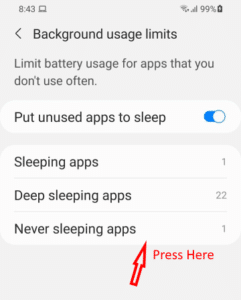
- Open Settings → Battery → Background usage limits.
- Open Deep sleeping apps and remove Auto Reply App.
- Open Never sleeping apps and add Auto Reply App.
Android 15 and Newer
- Open Settings → Apps.
- Select Auto Reply App.
- Tap App battery usage.
- Enable Allow background usage.
- Select Unrestricted, where available.
Device-Specific Instructions
If menu names differ, search Settings for Deep sleep, Sleeping apps, Background usage, Background restrictions, Unrestricted battery, or Never sleeping apps.
Related Resources
Exclude Auto Reply App from Battery Optimization
Applies to: LeMi Apps website and Google Play versions
Why This Matters
Battery Optimization may limit or stop background processes after the phone has been idle, preventing incoming-message detection or scheduled activation.
Google Pixel, Motorola, and Standard Android
- Open Settings → Apps → All apps.
- Select Auto Reply App.
- Tap App battery usage.
- Select Unrestricted.
Samsung Galaxy
- Open Settings → Battery → Background usage limits.
- Tap Never sleeping apps.
- Tap the plus icon, select Auto Reply App, and tap Add.
Also confirm that the app is not listed under Sleeping apps or Deep sleeping apps.
OnePlus, Oppo, and Realme
- Open Settings → Apps → App management.
- Select Auto Reply App.
- Tap Battery usage.
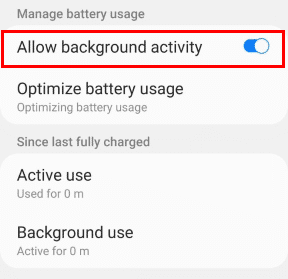
- Enable Allow background activity and Allow auto-launch, where available.
Xiaomi, Redmi, and POCO
- Open Settings → Apps → Manage apps.
- Select Auto Reply App.
- Tap Battery saver.
- Select No restrictions.
Enable Auto-start if the device provides this setting.
Restart and Test
- Restart the phone.
- Open Auto Reply App.
- Enable the required Auto Reply.
- Lock the screen.
- Send a test message from another phone.
Related Resources
Exclude Auto Reply App from Power Saving Mode
Applies to: LeMi Apps website and Google Play versions
Why This Matters
Power Saving Mode or Battery Saver applies system-wide restrictions that may override the app’s individual Unrestricted battery setting.
Samsung Galaxy
- Open Settings → Battery.
- Turn off Power saving while testing.
- Review Background usage limits.
- Add Auto Reply App to Never sleeping apps.
- Remove it from Sleeping apps and Deep sleeping apps.
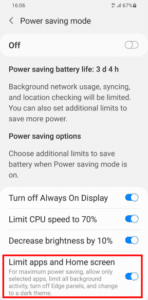
If Maximum Power Saving or Limit apps and Home screen is enabled, include Auto Reply App among the allowed applications.
Google Pixel and Standard Android
- Open Settings → Battery → Battery Saver.
- Turn off Battery Saver while testing.
If the device provides Essential apps, Exempt apps, or a similar setting, add Auto Reply App.
Xiaomi, Redmi, and POCO
- Open Settings → Battery.
- Open Battery Saver or app battery settings.
- Select Auto Reply App.
- Choose No restrictions.
Other Manufacturers
Search Settings for Battery Saver, Power Saving Mode, Background limits, App exceptions, Protected apps, or Essential apps.
Recommended Test
Temporarily turn off Power Saving Mode and test Auto Reply App again. If it works correctly, the issue is caused by battery restrictions.
Related Resources
Allow Auto Reply During Do Not Disturb
Applies to: LeMi Apps website and Google Play versions
Why This Matters
Auto Reply App may rely on incoming notifications to detect messages from supported messaging applications. If Do Not Disturb suppresses the notification, the event required to send a reply may not reach Auto Reply App.
This is especially relevant to WhatsApp, Telegram, Messenger, Google Voice, Signal, and other supported messaging services.
Google Pixel, Motorola, Nothing, and Standard Android
- Open Settings → Notifications → Do Not Disturb.
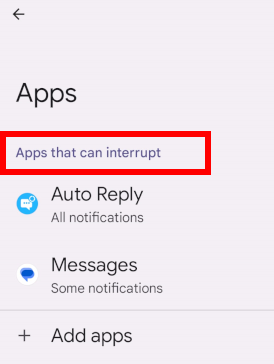
- Open Apps, People, apps and media, or a similarly named section.
- Tap Add apps.
- Select Auto Reply App and allow the required notifications.
Also confirm that notifications are enabled for the messaging app receiving the incoming message.
Samsung Galaxy
- Open Settings → Notifications → Do Not Disturb.
- Tap App notifications.
- Tap Add apps or the plus icon.
- Select Auto Reply App and tap Done.
Add the messaging application as well if Do Not Disturb suppresses its notifications.
Xiaomi, Redmi, and POCO
- Long-press the Auto Reply App icon.
- Tap App info → Notifications.
- Select the relevant notification category.
- Enable Override Do Not Disturb, where available.
Repeat these steps for the messaging application receiving the incoming message.
Important: Allowing Auto Reply App through Do Not Disturb may not be sufficient if the original messaging application is still prevented from showing notifications. Both apps must be able to receive the required notification events.
Related Resources
Still Need Help?
If the issue continues after completing the relevant troubleshooting steps:
- Restart the phone after changing permissions or battery settings.
- Confirm that the latest version of Auto Reply App is installed.
- Open Auto Reply App and verify that the required Auto Reply is active.
- Confirm that all required permissions remain enabled.
- Test the app while Power Saving Mode is turned off.
- Test whether the issue occurs only when the screen is locked.
- Review the FAQ page for your specific application.
When contacting LeMi Apps Support, include the app name, installation source, phone model, Android version, issue description, and screenshots of relevant permission and battery settings.